Deploying Party Microservice on Azure
This section explains how to deploy the Party Microservice on the Azure cloud. To do so, you need to perform the following tasks:
Deployment Artefacts
Party Microservices for Azure deployment is available as a single-release bundle with respect to databases as ms-party-package-azure-mongo<release_number>.zip and ms-party-package-azure-postgresql<release_number>.zip.
Deploying Party Microservice on Azure
For MongoDB
Script Files and Folder Structure
- Azure Script files:
- install.sh/install.bat: This script deploys the Party Microservice in the Standalone mode.
- destroy.sh/destroy.bat: This script undeploys the Microservice and delete the Azure services from the Azure environment.
- Folder structure for the
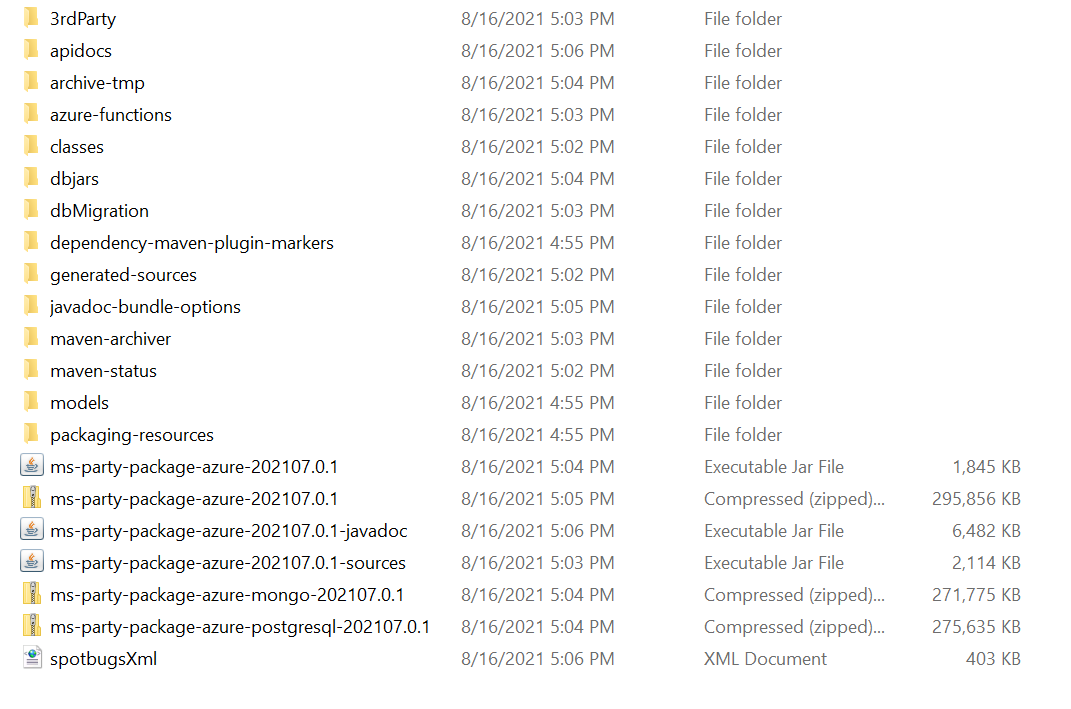
ms-party-package-azure-<release_number>.zipfile is as follows.
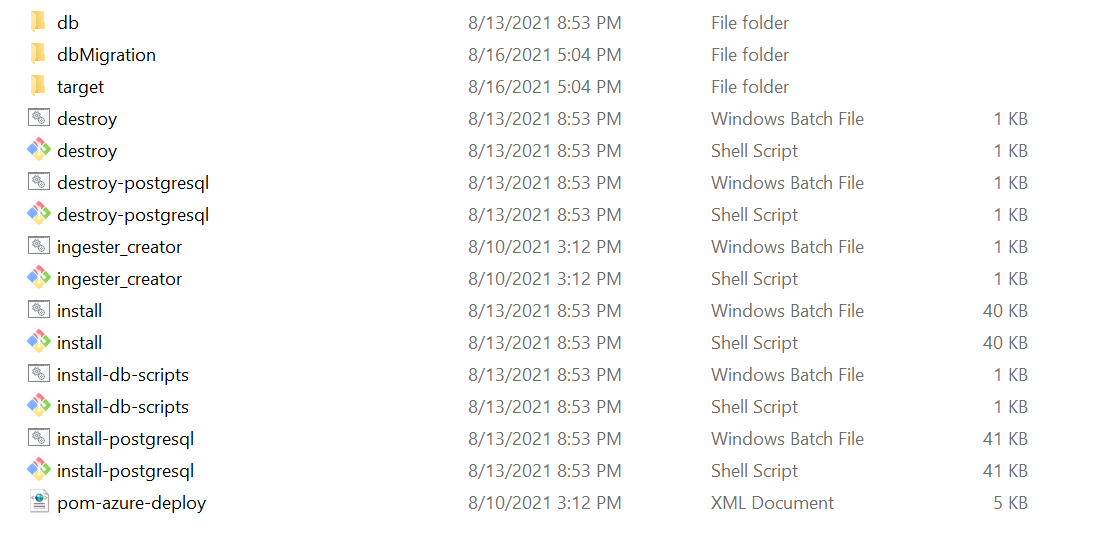
Pom-azure-deploy.xmlfile deploys the Azure function on the Azure portal.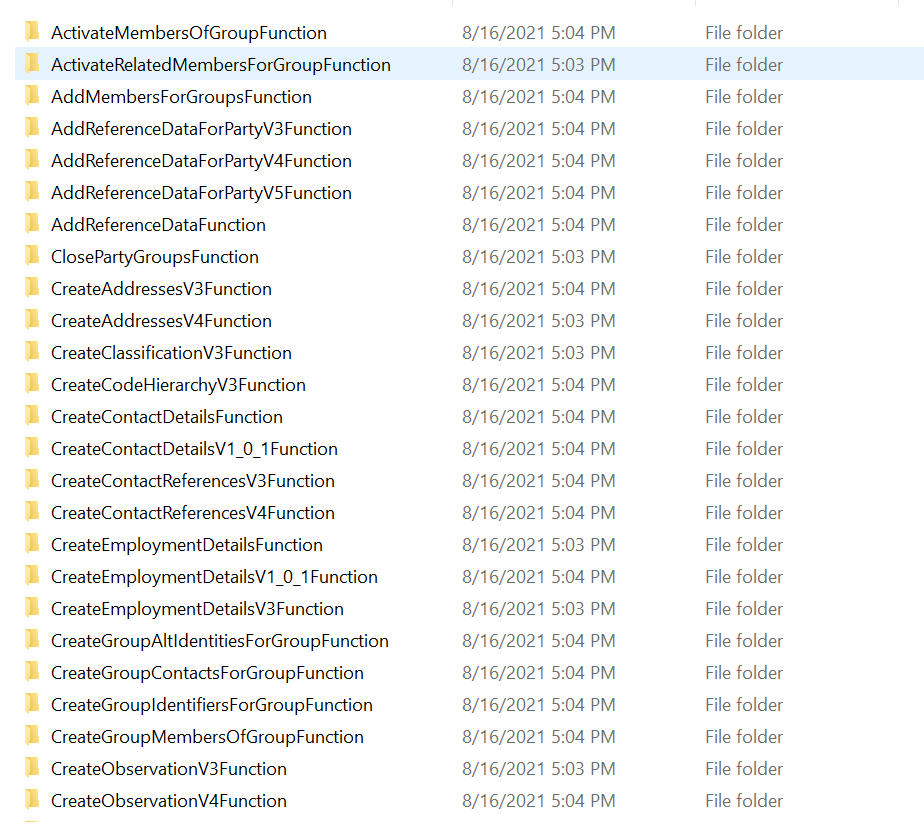
Prerequisites
Before deploying Party Microservice on Azure, ensure you have the following:
- Install the Azure Command Line Interface. For more information about the installation, click here.
- Install Maven.
- Install Mongo Shell.
Download the Mongo Shell from Mongo Atlas under the tab named Connect with Mongo Shell by clicking Connect.
- Get an active connection string of Mongo Atlas cluster. Acquire Mongo Atlas Cluster for Java driver version 3.4.
- Get MONGODB_CONNECT_STR string for Java driver version 3.4.
- Download the mongo shell from the Mongo Atlas under the Connect with mongo shell tab by clicking Connect.
- MONGOSHELL_CONNECT_STR string must be obtained under the Connect with MongoDB Compass by clicking Connect.
To deploy Party Microservice on Azure, follow these steps.
- Download and extract the generated zip file from the target folder into the installation directory.
- In Command Prompt, go to the installation directory.
- Modify the installation-specific details such as Resource Group, Location, and MONGODB_CONNECT_STR, MONGOSHELL_CONNECT_STR in the install.sh/install.bat script.
For example,
- SET MONGODB_CONNECT_STR="mongodb://Temenos:Temenos123@cluster0-shard-00-02.4o1ua.azure.mongodb.net:27017,cluster0-shard-00-00.4o1ua.azure.mongodb.net:27017,cluster0-shard-00-01.4o1ua.azure.mongodb.net:27017/ms_party?authSource=admin&gssapiServiceName=mongodb&replicaSet=atlas-vj913p-shard-0&ssl=true"
- SET MONGOSHELL_CONNECT_STR="mongodb+srv://Temenos:Temenos123@cluster0.4o1ua.azure.mongodb.net"
- Insert default mongo.js file (master data) into the MongoDB through install.bat/install.sh file.
To insert the data other than the master data, do the following:
- Load the prerequisite data into Mongo DB through the install-db-scripts.bat/.sh script file. Load the data only through the script files(.js).
- Place all the files under the folder path, ms-party-azure\target\azure-functions\<app folder.
- Send the following parameters while executing the bat file:
url Provide the Mongo string URL along with the username and password that is given in the Prerequisite section. app_name Provide the app name given during the Azure deployment. scripts Provide the file names delimited by comma. - Run the following commands:
- For .bat file,
- install-db-scripts.bat --uri <uri> --app_name <app_name> --scripts "<filename1>,<filename2>"
For example, install-db-scripts.bat --uri --mongodb+srv://test:test@cluster0.4o1ua.azure.mongodb.net --app_name partyapp --scripts "mongo1.js,mongo2.js".
- install-db-scripts.bat --uri <uri> --app_name <app_name> --scripts "<filename1>,<filename2>"
- For .sh file,
- install-db-scripts.sh --uri <uri> --app_name <app_name> --scripts "<filename1>,<filename2>"
For example, install-db-scripts.sh --uri mongodb+srv://test:test@cluster0.4o1ua.azure.mongodb.net --app_name partyapp --scripts mongo1.js,mongo2.js.
- install-db-scripts.sh --uri <uri> --app_name <app_name> --scripts "<filename1>,<filename2>"
- For .bat file,
- By default, Azure function app name in the script can be changed. In case of Azure function app's name changes, rename the folder (ms-party-azure\target\azure-functions\<app folder>\) available in the app's name.
- To enable authorization and authentication, follow these steps:
- In addition to the API key, enable JWT Authentication in the installation scripts.
- To enable security policies and access rights to the APIs, perform the XACML configurations in the installation scripts.
- After this, execute either
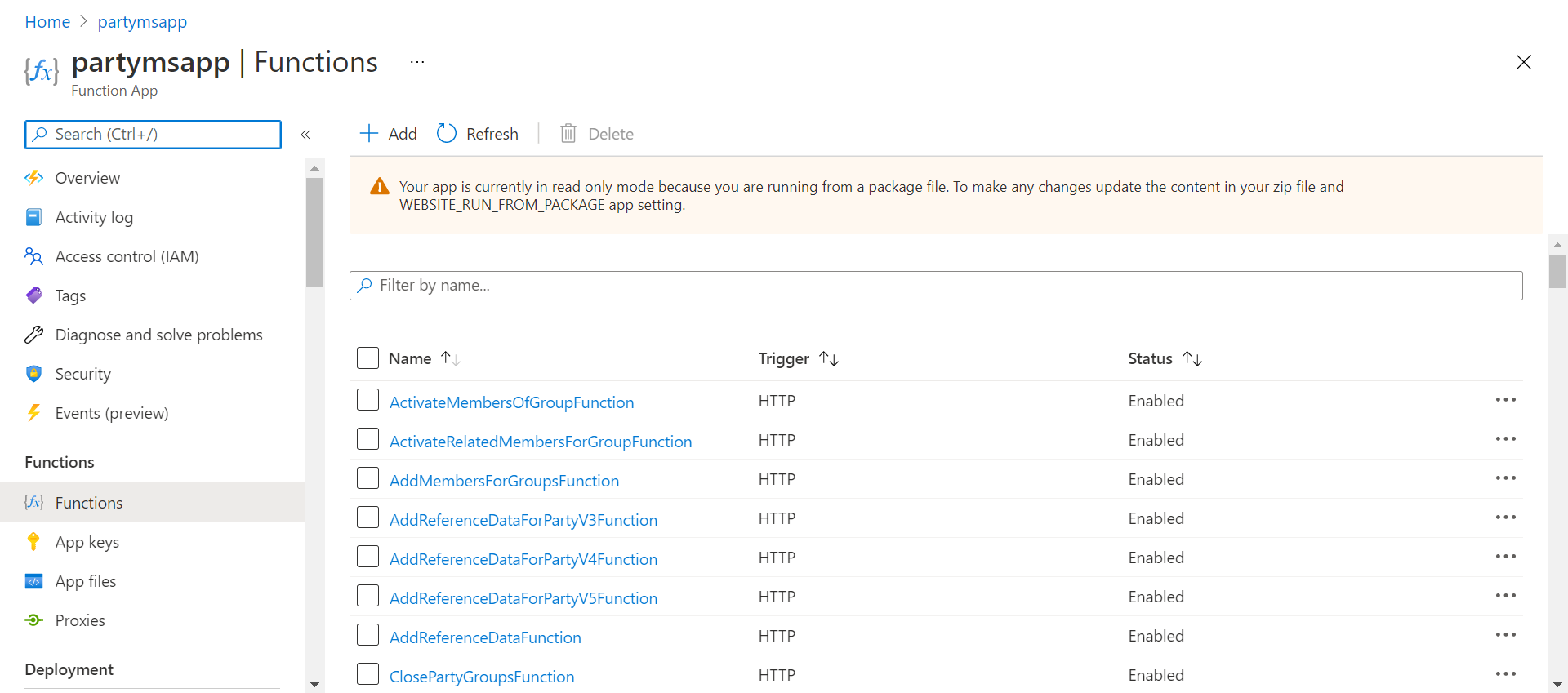
install.shorinstall.bat.Script Description install.sh/install.bat The script deploys the necessary components for a Microservice. It includes the deployment of the streaming services to run the Microservice independently. After successful installation, these Azure functions are created.
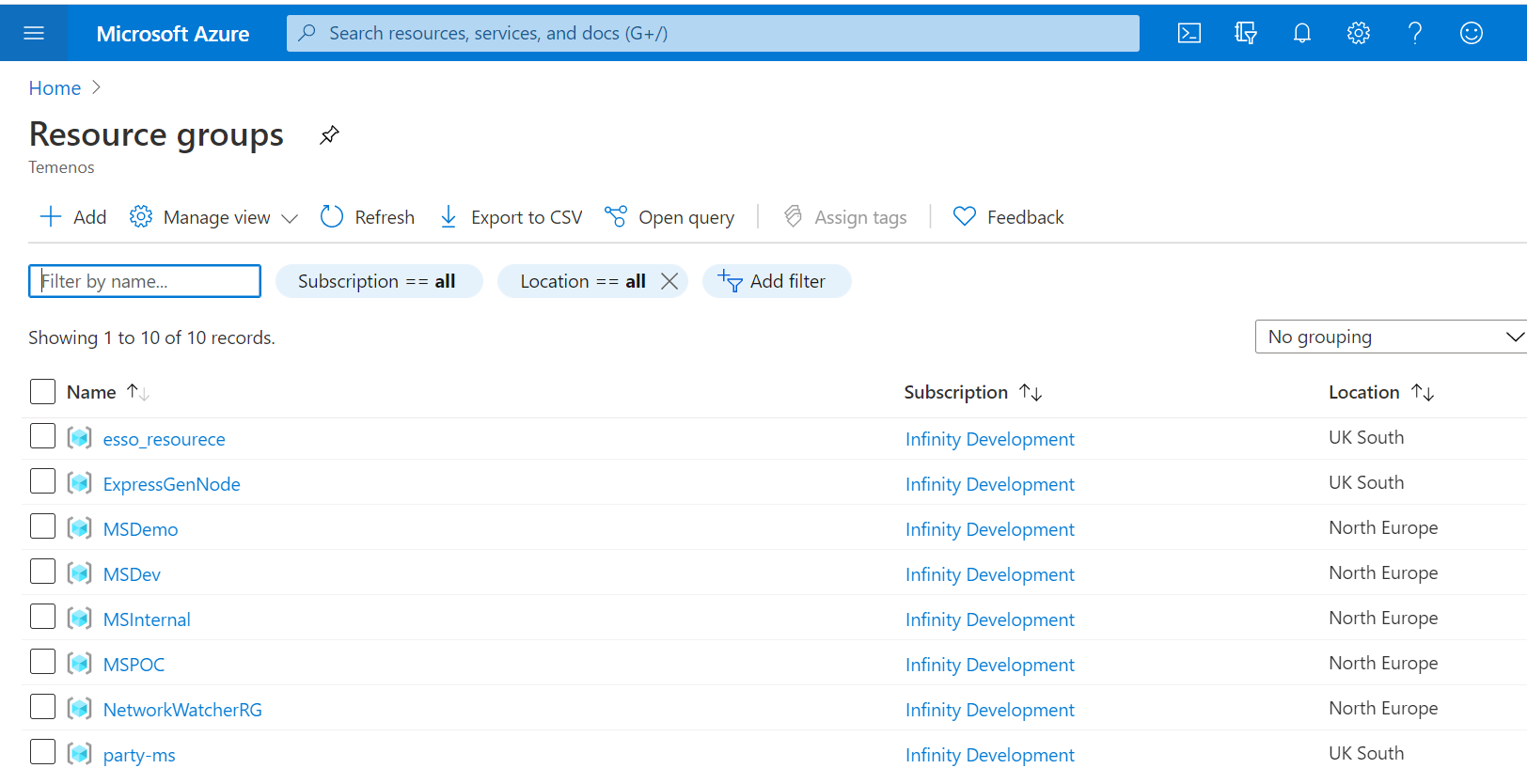
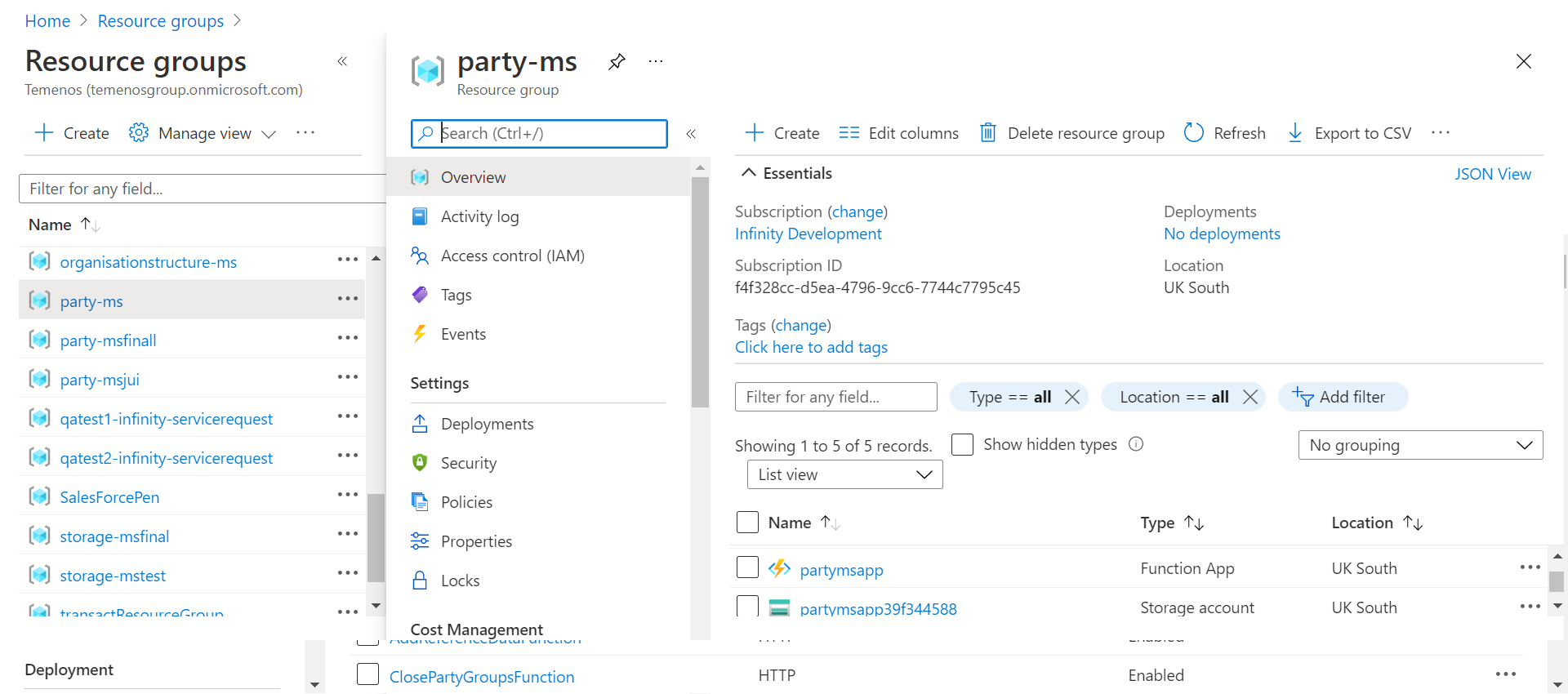
- Signin to the Azure portal and verify if the Resource Group and the Function App are created.
Resource Group
Function App
Party Functions
- Obtain the API key for each endpoint by using the
func azure functionapp list-functions <function-app-name> --show-keyscommand. Alternatively, you can also obtain the API key from the Azure function GUI.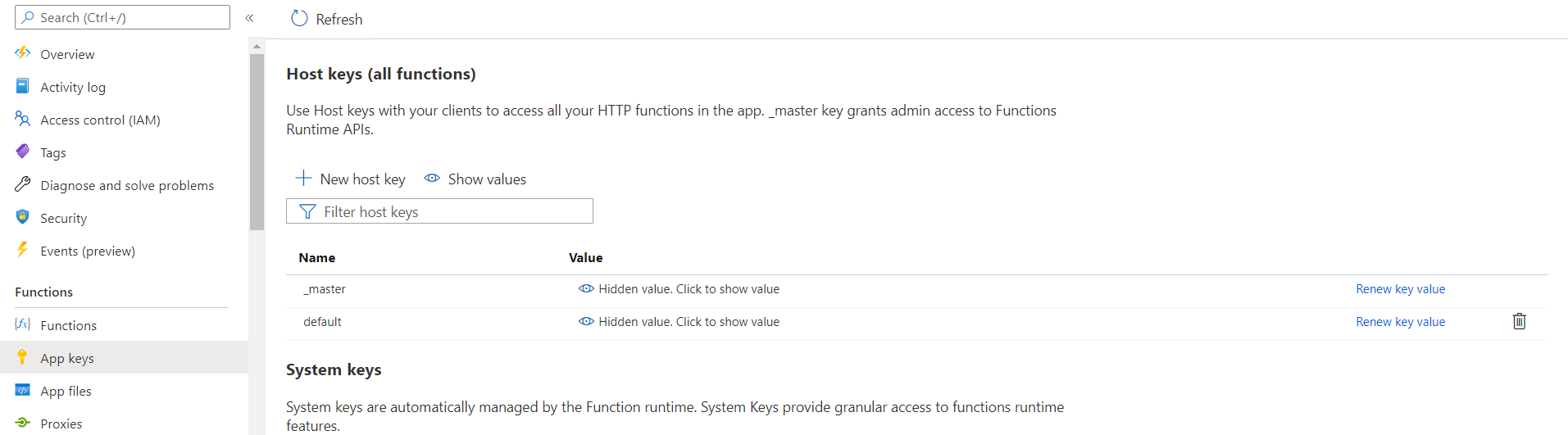
- Obtain the endpoints of the Azure Function App from the Azure Function App. The URL of the sample function app is as follows:
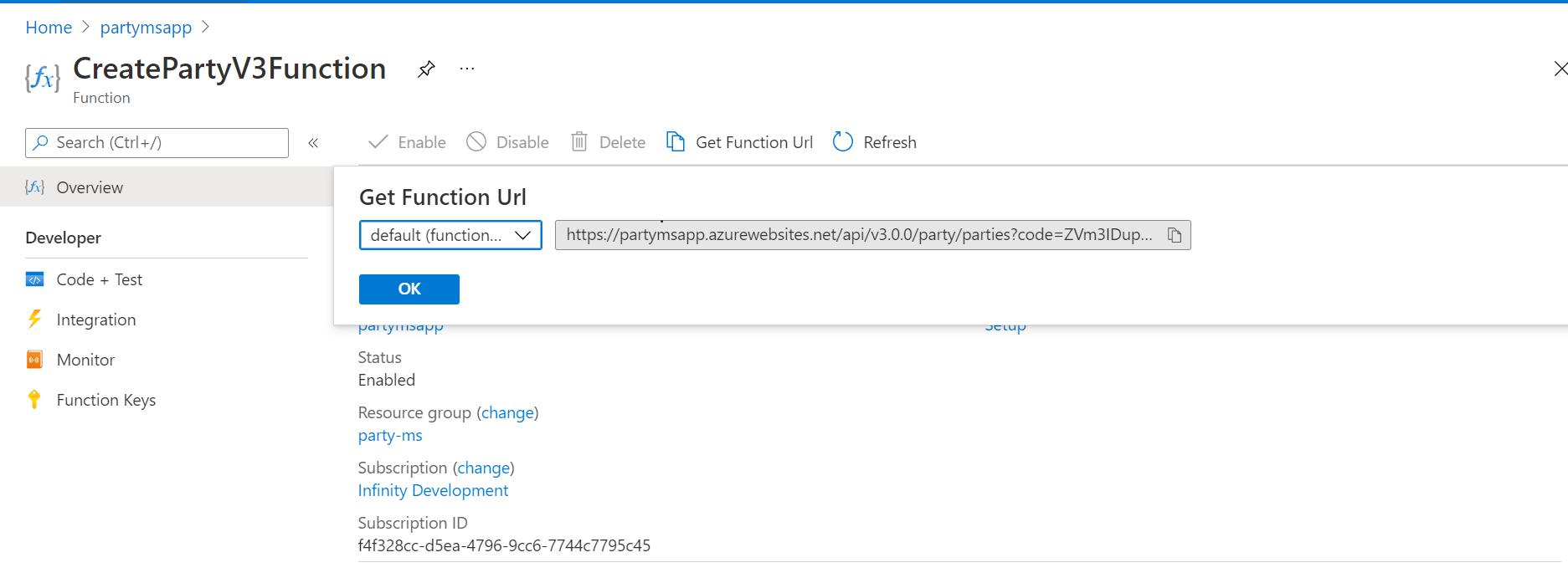
The Get Function URL provides the complete URL along with the API key.
- After the successful deployment, load the database, collections, and reference data(master data) into the mongo server database for the Party Microservice.
For PostgreSQL DB
Script Files and Folder Structure
- Azure Script files:
- install-postgresql.bat/install-postgresql.sh: This script deploys the Party Microservice in the Standalone mode.
- destroy-postgresql.sh/destroy-postgresql.bat: This script undeploys the Microservice and delete the Azure services from the Azure environment.
- Folder structure for the
ms-party-package-azure-postgresql<release_number>.zipfile is as follows.
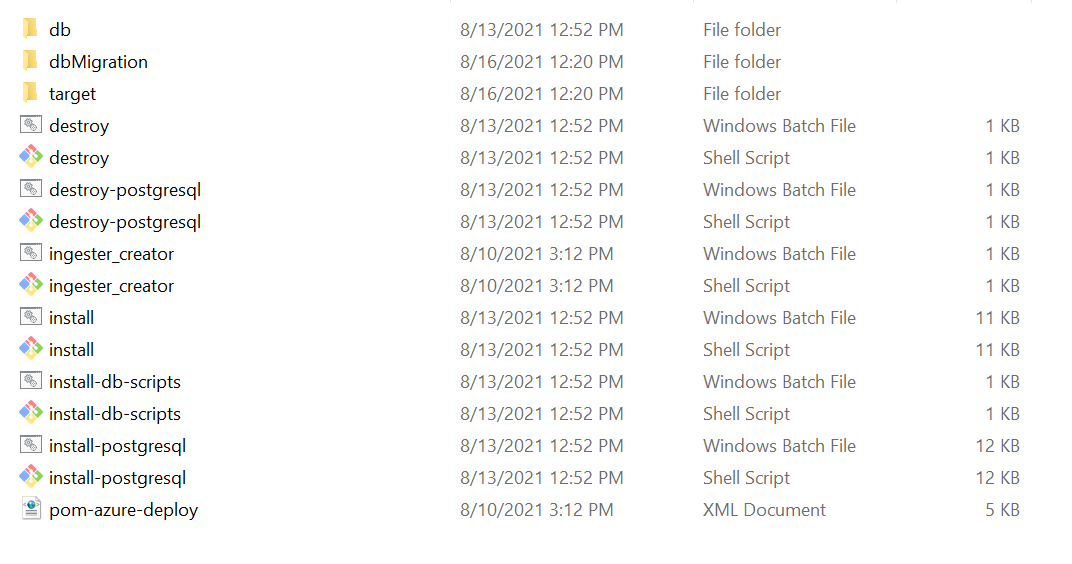
Pom-azure-deploy.xmlfile deploys the Azure function on the Azure portal.
Prerequisites
Before deploying Party Microservice on Azure ensure you have the following:
- Install the Azure Command Line Interface. For more information about the installation, click here.
- Install Maven.
To deploy Party Microservice on Azure, follow these steps.
- Download and extract the generated zip file from the target folder into the installation directory.
- In Command Prompt, go to the installation directory.
- The default initmsdb.sql file (Master Data) is inserted into the PostgreSQL.
- In case of Azure function app's name changes, rename the folder (ms-party-azure\target\azure-functions\<app folder>\) available in the app's name
- To enable authorization and authentication, follow these steps:
- In addition to the API key, enable JWT Authentication in the installation scripts.
- To enable security policies and access rights to the APIs, perform the XACML configurations in the installation scripts.
- After this, execute either
install.shorinstall.bat.Script Description install-postgresql.sh / install-postgresql.bat This deploys the necessary components for a microservice, including streaming services, and runs the Microservice independentlyThe script deploys the necessary components for a microservice. It includes the deployment of the streaming services to run the Microservice independently. After successful installation, these Azure functions are created.
- Sign in to the Azure portal and verify if the Resource Group and the Function App are created.
Resource Group
Function App
Party Functions
- Obtain the API key for each endpoint by using the
func azure functionapp list-functions <function-app-name> --show-keyscommand. Alternatively, you can also obtain the API key from the Azure function GUI. - Obtain the endpoints of the Azure Function App from the Azure Function App. The URL of the sample function app is as follows:
The Get Function URL provides the complete URL along with the API key.
- After the successful deployment, load the database, collections, and reference data(master data) into the PostgreSQL DB server for the Party Microservice.
In this topic